| SOLIDWORKS | |
| Modul: | SOLIDWORKS Desktop |
| Valid for: | Across all versions |
| issue date: | 22.10.2026 |
Introduction
The 'full download' refers to the complete set of installation files. This term is often used in relation to new installations, version upgrades, and the installation of service packs for all SOLIDWORKS CAD desktop products. But what does it actually mean? The full download is the complete set of installation files for the selected service pack for all SOLIDWORKS desktop products. In essence, it is the equivalent of good but old and not longer used DVDs/CDs. However, the full download does not contain any installation data for roles (licences) managed via the 3DEXPERIENCE platform. These packages are always launched via Kompass and the relevant app on the platform.

The good thing about this download is that it can be used for all installations, workstations and server components (SolidNetWork License Manager, PDM, etc.). It doesn’t matter which version or service pack you start with. The same download can be used for a brand new installation or to repair desktop products. It doesn't matter if SOLIDWORKS has ever been installed on this PC before. This download can be used for any SOLIDWORKS desktop installation. This includes SOLIDWORKS MCAD, eDrawings, the Electrical Suite, PDM components, and server services such as the SolidNetWork License Manager.
Please ensure that you back up your download set right up to the latest version.
Do not delete it until the new service pack or version has been installed and downloaded in full everywhere. But how do you access this record and what do you need to do?
Instructions
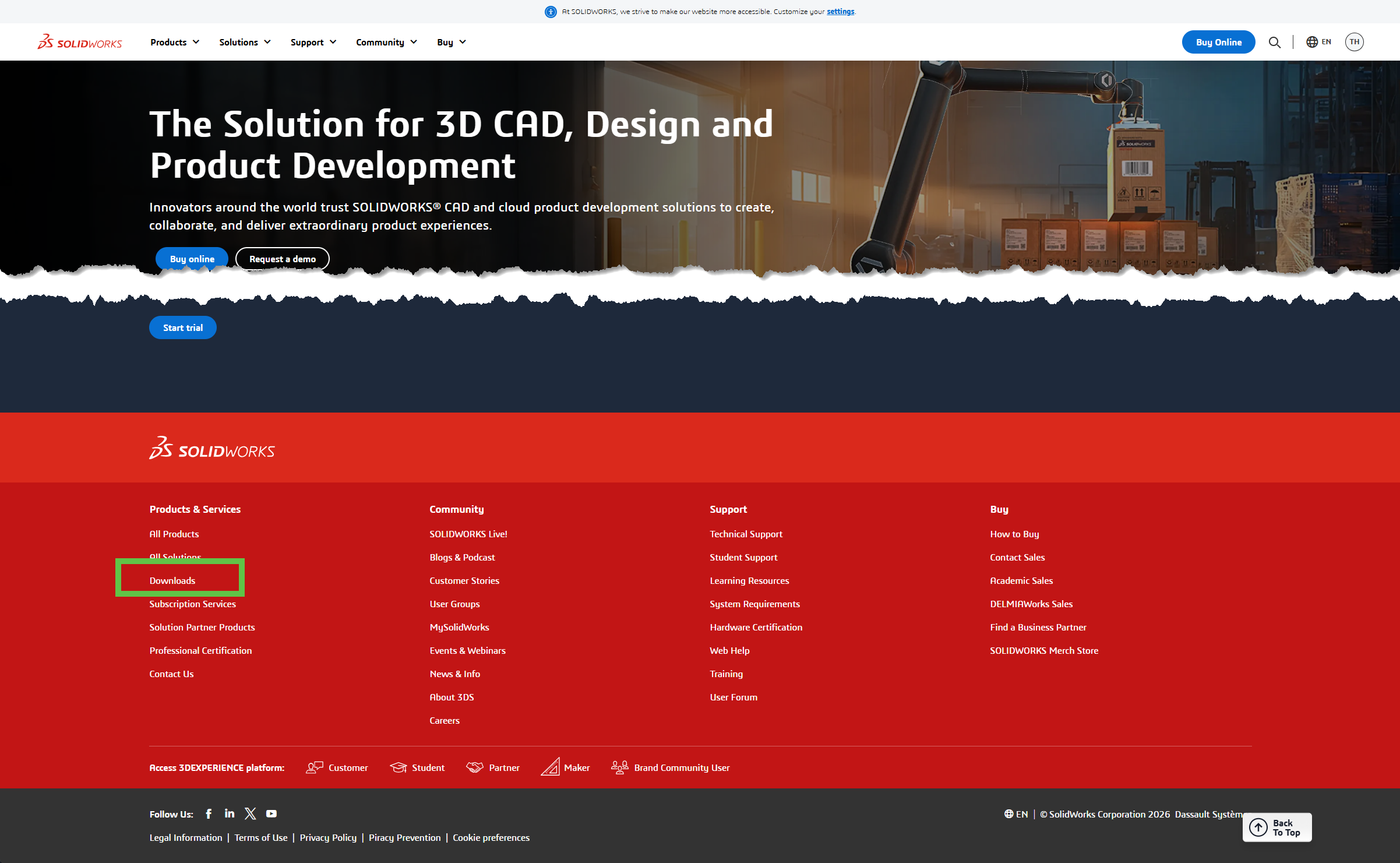
To download the file, go to www.solidworks.com. Scroll right to the bottom of the page. There you will find a link labelled ‘Downloads’. Click on it.
Once you have reached the download page, select 'SOLIDWORKS Downloads'. You will then be prompted to log in using your 3DEXPERIENCE ID.
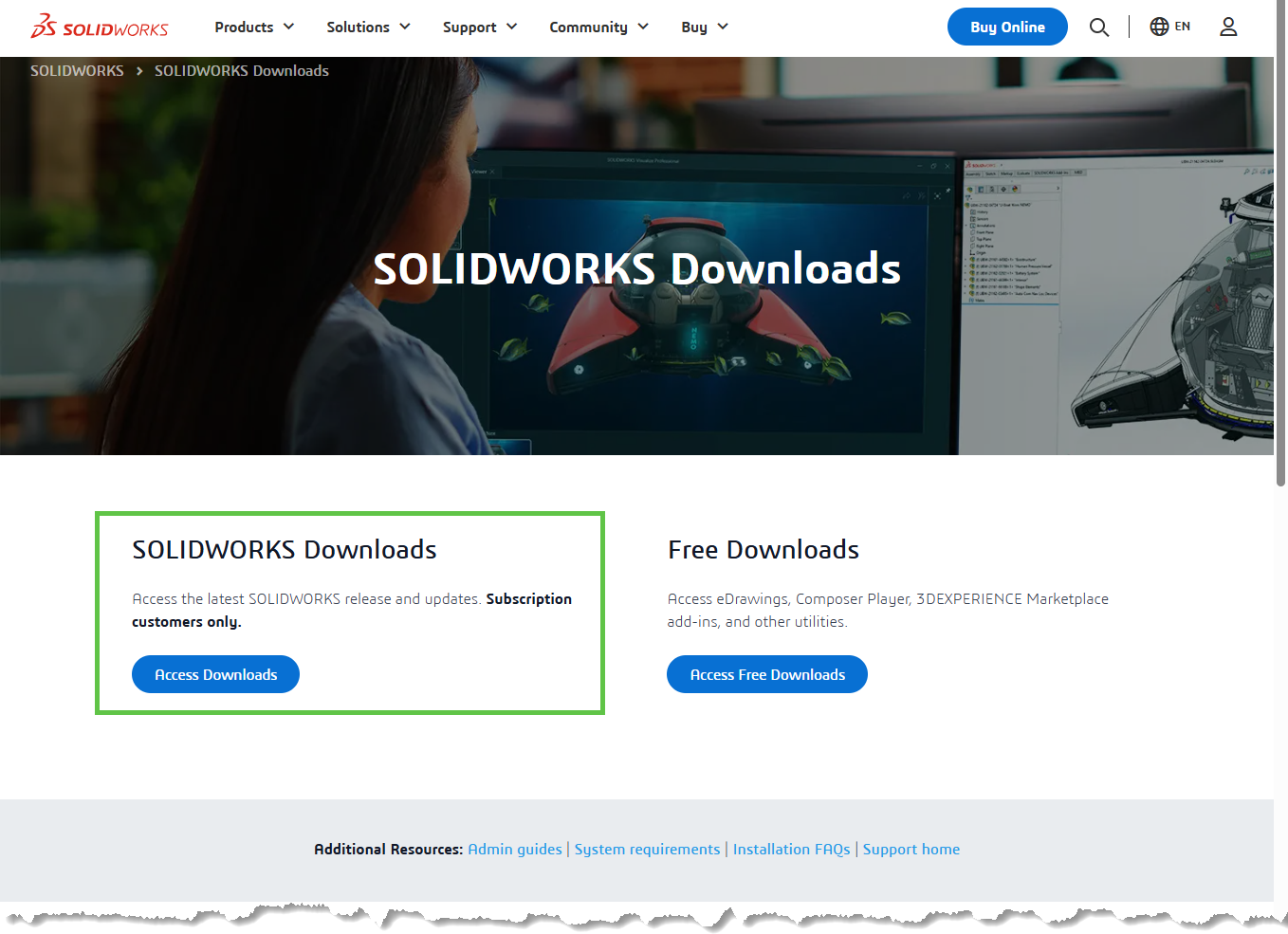
If you do not have authorisation to download here, you will need to contact your SOLIDWORKS administrator. They will need to register your 3DEXPERIENCE ID in the DSxClient Care app for your company. See the separate guide on user management in DSxClient for more information.
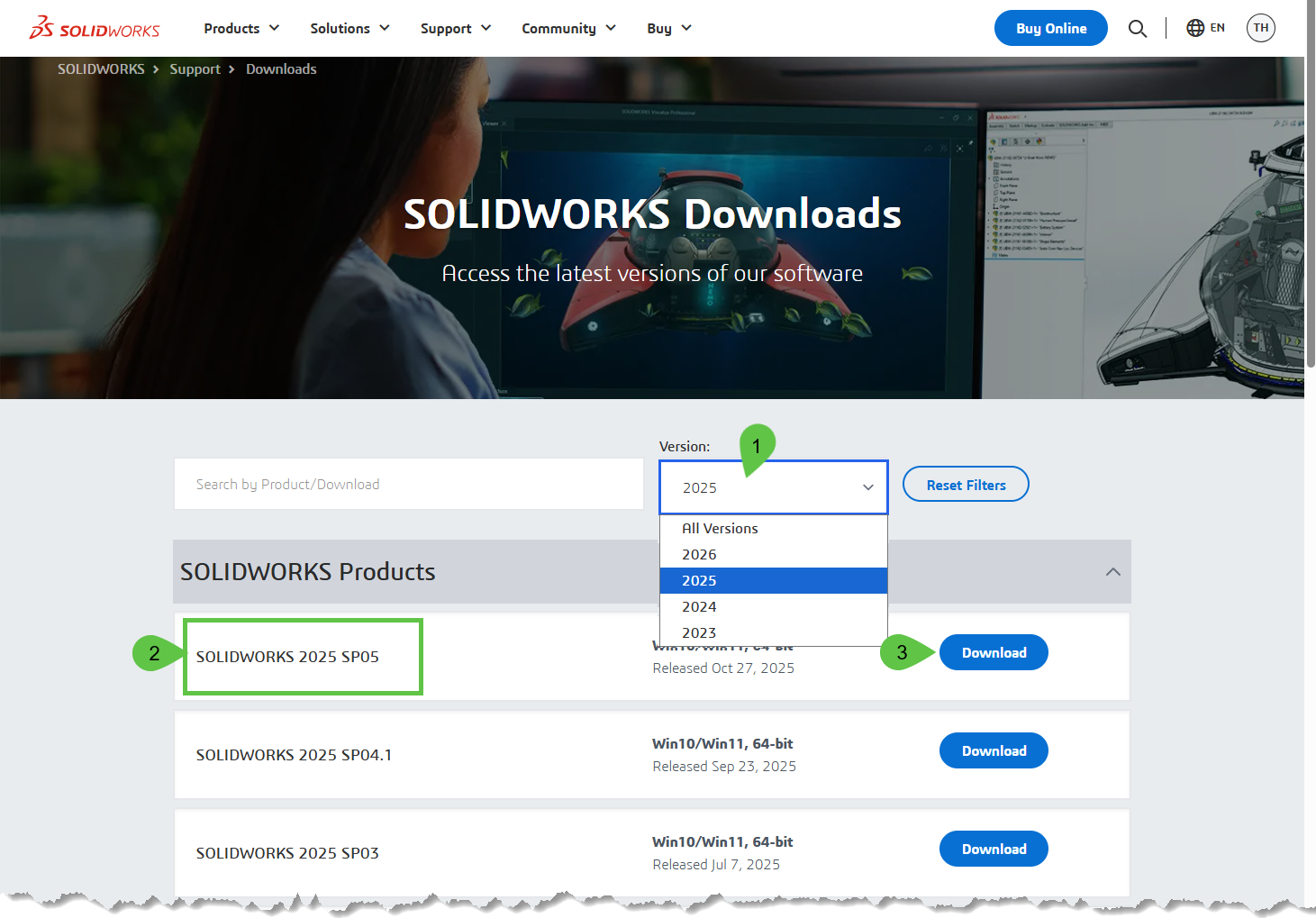
Once you have logged in with the correct authorisations, the download will be available. First, select the main version/release that you require (1). If there are several service packs available for your chosen version, they will be listed directly below. Where possible, we recommend installing the latest service pack for your chosen version, which will appear at the top of the list. Click on 'Download' (3) to download the installation manager for the selected version.
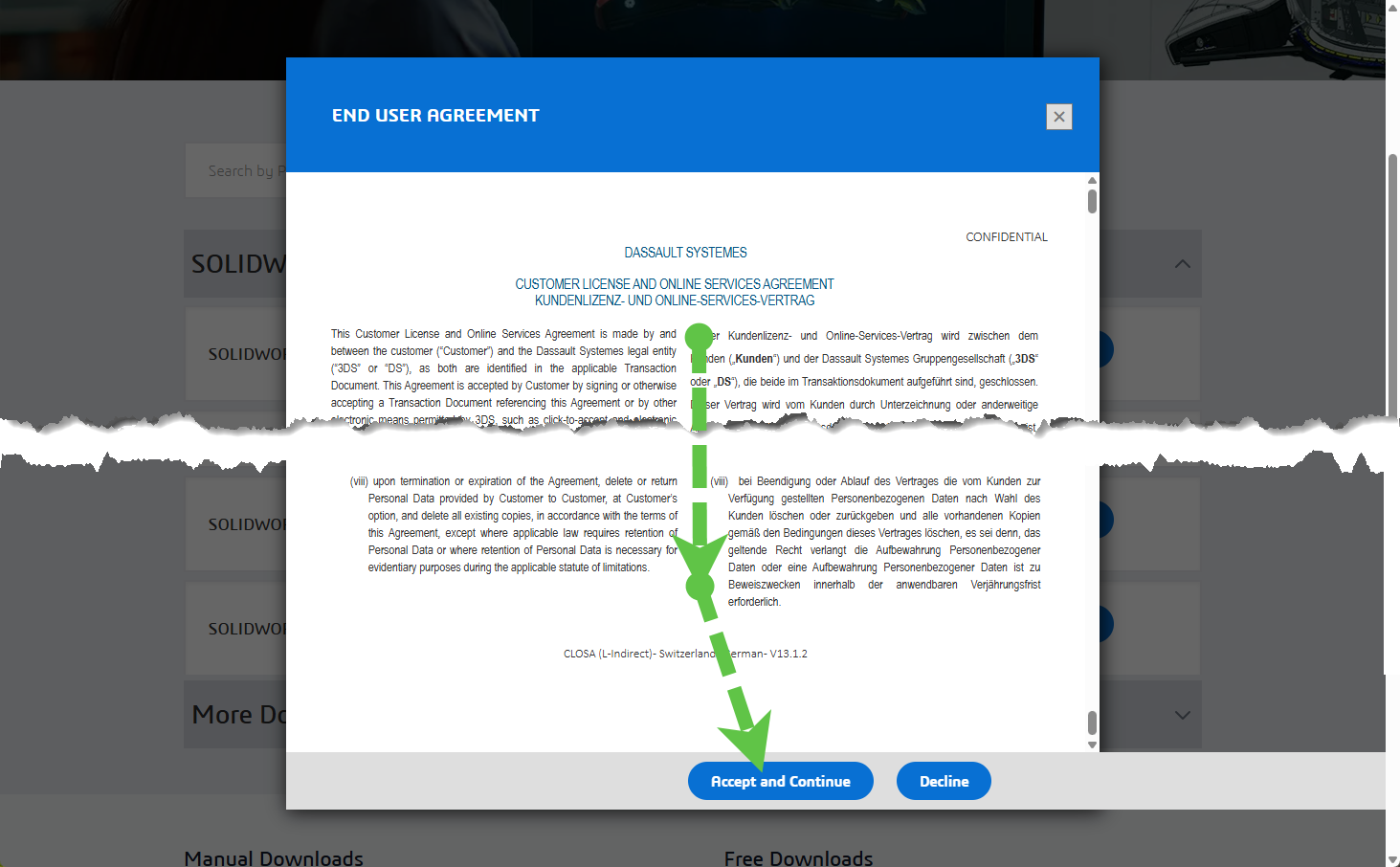
Haben Sie Ihre Version gewählt und auf Download (3) des benötigten Servicepack geklickt, müssen Sie das Abkommen annehmen. Damit der Accept Agreement & Continue-Knopf aktiv wird, müssen Sie ganz nach unten scrollen.
You can now download the SOLIDWORKS Installation Manager. You will then be prompted to save it locally. However, this is not the end of the process.
Download and run the SOLIDWORKS Installation Manager straight away using the SolidWorksSetup.exe file you have just downloaded. You will then be asked to specify where the Installation Manager files should be extracted. The location is not important. However, it is recommended that you choose a local directory.
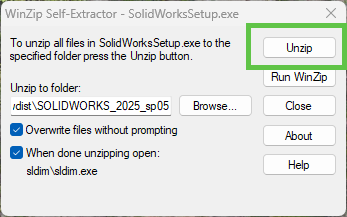
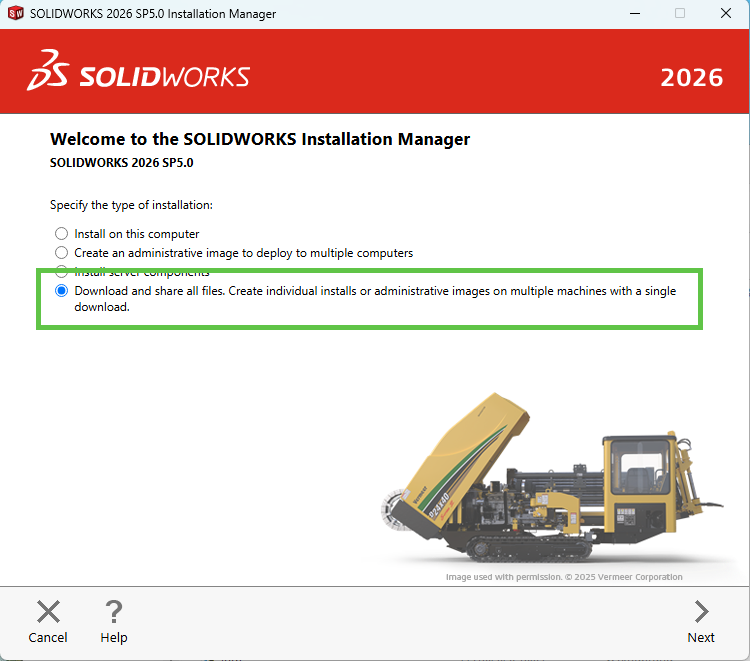
Once the Installation Manager has been successfully extracted, it will launch automatically. When the SOLIDWORKS Installation Manager has launched, select the final option: 'Download and share all files'. Then click 'Next'.
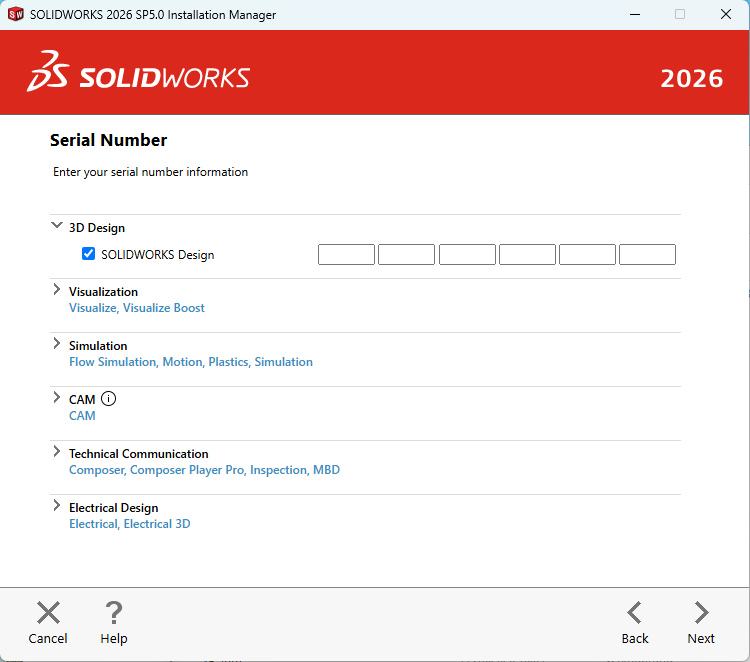
A licence number with an active maintenance contract is essential for download and must be entered here.
Please accept the licence terms and click 'Download now' to start the download.
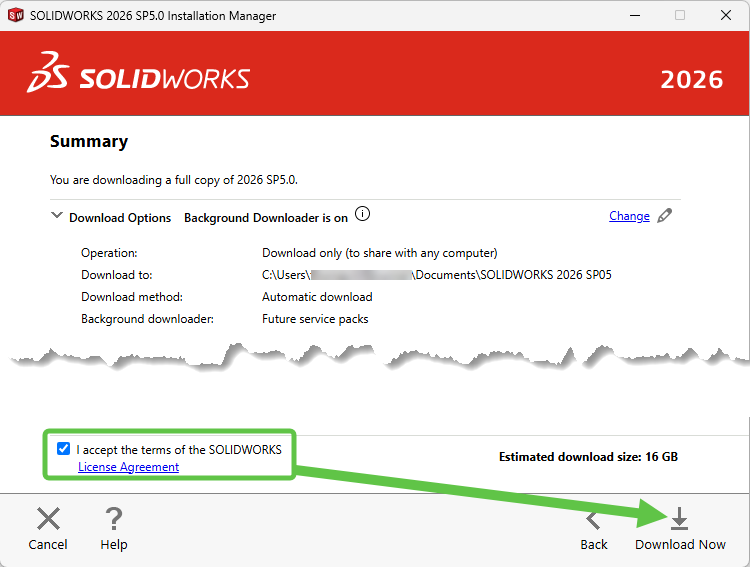
The SOLIDWORKS Installation Manager will now start downloading everything you need. This will be saved to your Windows Documents folder by default.
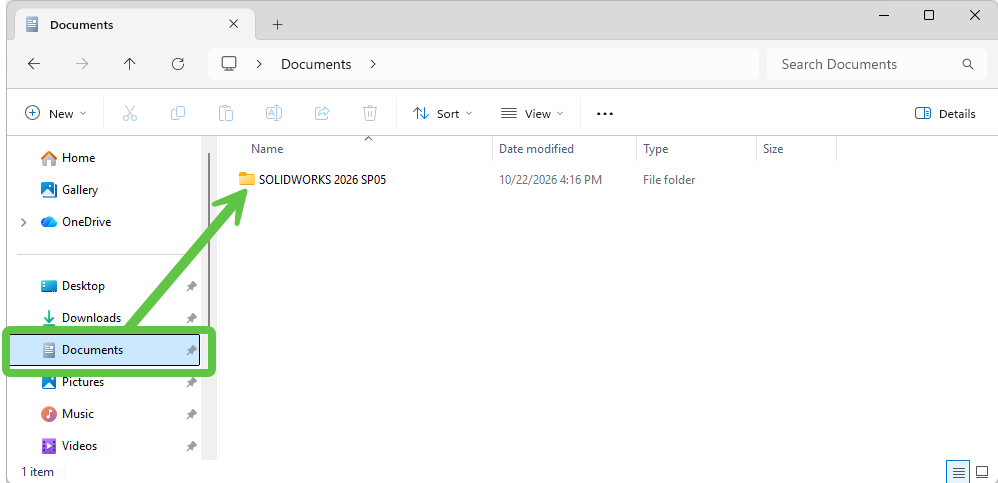
Once the download is complete, the entire folder can be moved. Ideally, this should be done to a server that all workstations can access.
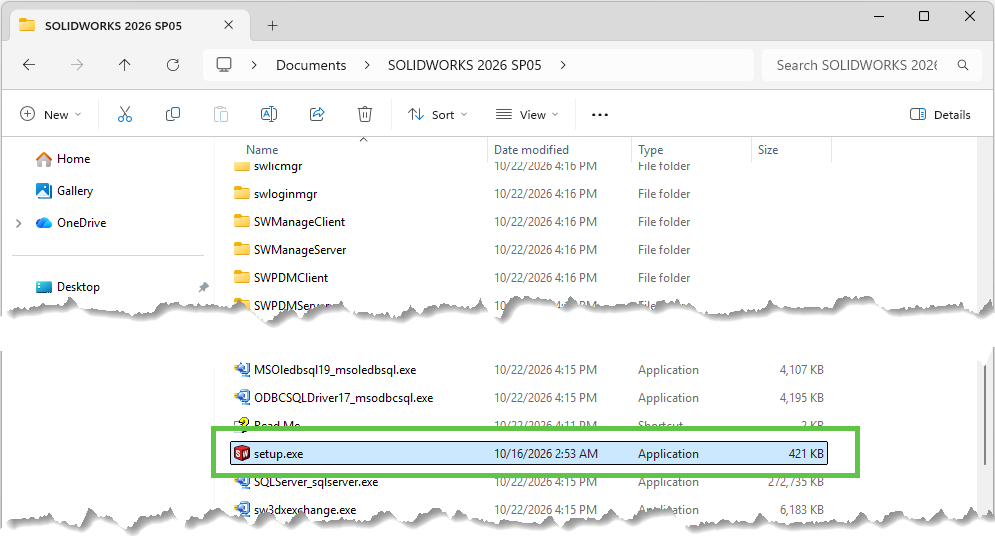
This download process does not install any software. It simply downloads the files. You can carry out this process while you work in SOLIDWORKS as normal. You can start the installation at a later date via Setup.exe in the download directory, regardless of which SOLIDWORKS component is involved.
Things to know
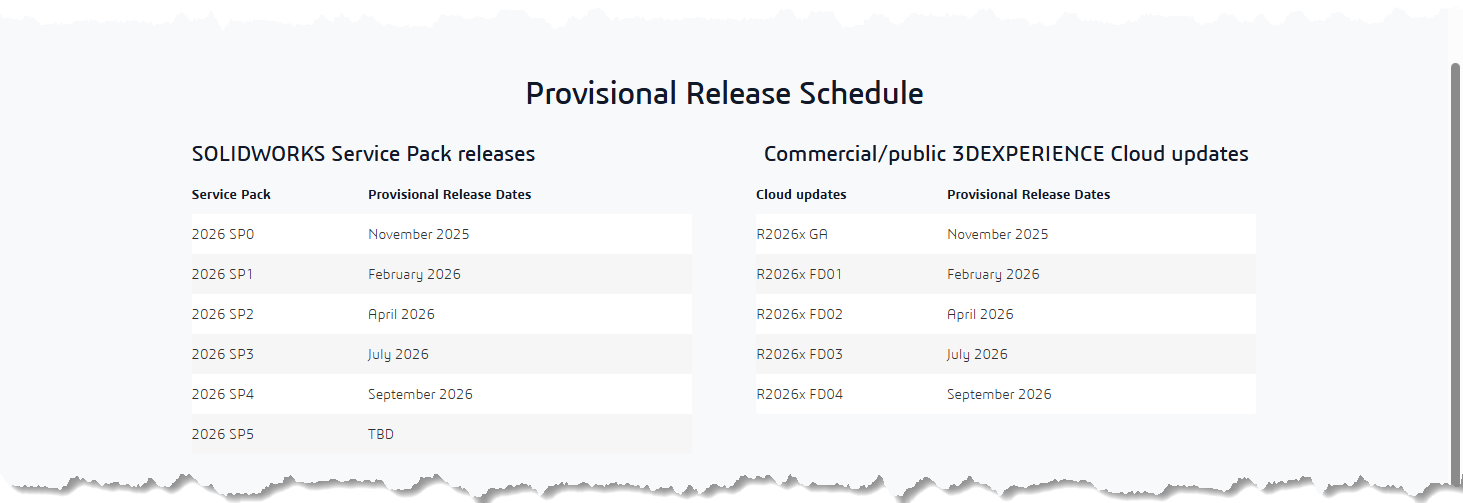
Release dates for versions and service packs
Would you like to know when the service packs are due? Take a look at the 'Provisional Release Schedule' list on the page where you clicked 'Download'. You will find it further down the page.
additional resources
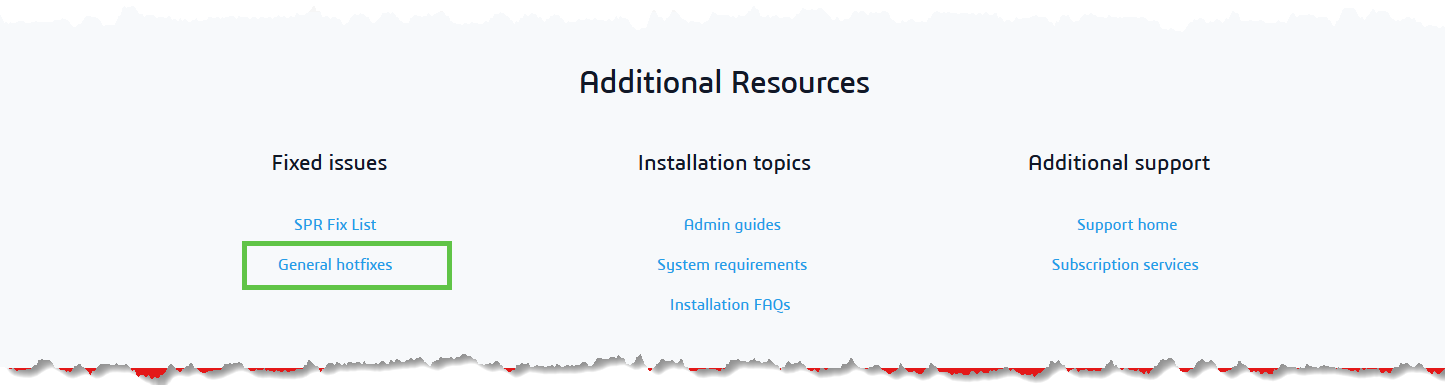
Scroll down to just before the red section at the bottom of the webpage, where you will find the 'Additional Resources' section. Here, you will have direct access not only to the administration and installation guides, but also to a list of available hotfixes and those recommended for additional installation. (General hotfixes).
Hotfixes are corrections for serious errors in SOLIDWORKS. They must only be installed on the exact version and service pack for which they were developed. For example, do not use a hotfix designed for SOLIDWORKS 2025 SP5.0 on an older version, newer version or service pack. Newer versions and service packs already include these hotfixes in the full download.
Hotfixes are very easy to install and to check which ones are installed. Please see our separate guide for this. Installation Hotfix.